
The streaming struggle is real
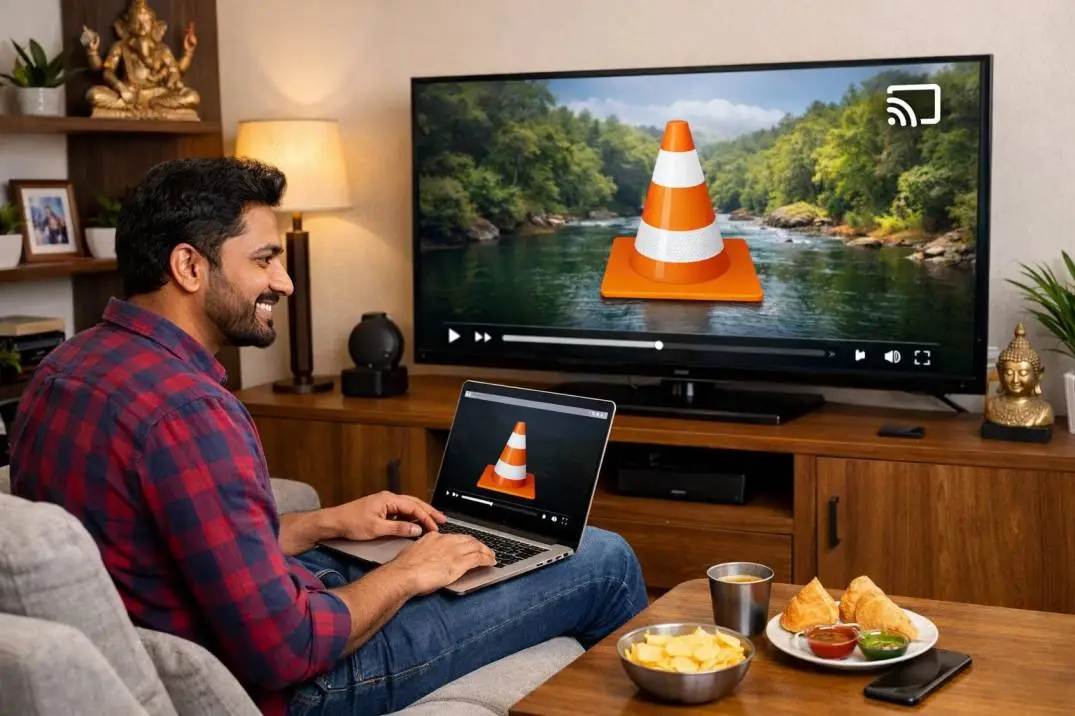
You open VLC. You find the perfect movie. You hit the Cast button. Then it happens. Buffering. Lag. Black screen. The video plays on your laptop but not on your TV. I have been there too many times.
After testing every fix across Windows, Mac, and Android, I finally cracked the code. Let me show you exactly what works.
Before You Start: The Non-Negotiable Setup
Casting fails for one reason 90 percent of the time. Your devices are not talking to each other properly.
Related Article: Chromecast and Google TV Streamer Firmware Versions and Official Release Notes (Updated 2026)
The golden rule. Your computer AND your Chromecast MUST be on the same Wi-Fi network. Same router. Same frequency band.
The hidden trap. Many routers split 2.4GHz and 5GHz into separate networks. Your PC might connect to 5GHz while your Chromecast sits on 2.4GHz. They cannot see each other.
The fix. Go into your router settings. Give both bands the SAME network name. Or force both devices onto the same band manually.
The quick check. Open Google Home on your phone. If your Chromecast appears there, your network is fine. If not, fix that first.
Step by Step: Casting From Vlc on Windows or Mac
Once your network is solid, follow these exact steps.
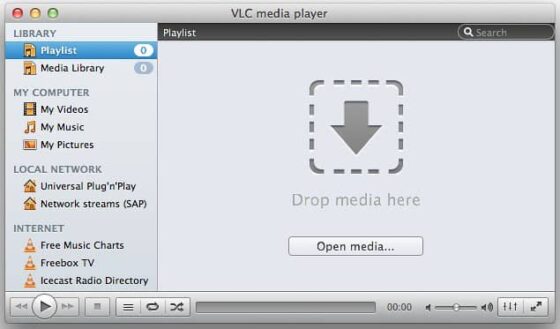
Step 1. Open VLC. Play any video file first. The renderer option does not appear without media running.
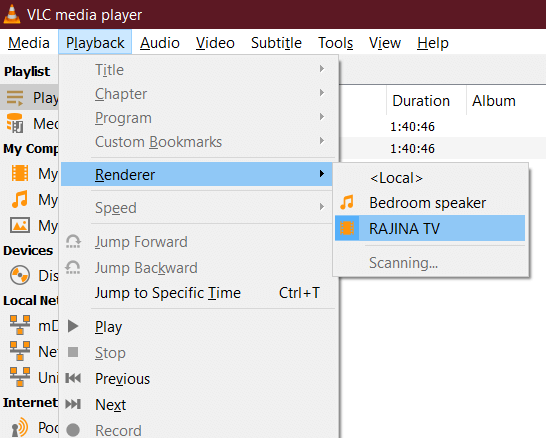
Step 2. Click the Playback menu at the top. Hover over Renderer.
Step 3. Wait up to 30 seconds. Your Chromecast name should appear.
Step 4. Click your Chromecast name. The video on your PC will go black. That is normal. The stream moves to your TV.
Step 5. If VLC asks about a security certificate, click "Accept permanently." This is a false alarm. VLC generates its own local certificate. Windows does not trust it by default. You must accept it.
The Certificate Warning That Freaks Everyone Out
The first time you connect, VLC shows a scary message. "Untrusted certificate." "Connection not secure." Do not panic. This happens because Chromecast uses encrypted communication.
VLC cannot get a verified certificate from Google for every local connection. The warning means nothing.
Click "Accept permanently." The warning never returns. The stream starts.
I have seen people cancel here and give up. Do not be that person. Trust the process.
Why Lag Happens and How to Stop It?
Buffering and lag come from one source. Your computer cannot convert the video fast enough.
You Must Also Like: How to Factory Reset Chromecast Ultra Without Physical Button?
The technical truth. Chromecast only plays certain formats natively. MP4 with H.264 video and AAC audio. That is it. When you play an AVI, MKV, or any other format, VLC converts it in real time.
This is called transcoding. It uses massive CPU power.
The lag fix for Windows users. Open Tools > Preferences. Click Video. Change Output from "Automatic" to "OpenGL Video Output." Restart VLC.
The lag fix for everyone. If your video keeps buffering, lower the quality. Go to Tools > Preferences > Show Settings (bottom left) > All. Navigate to Stream Output > Sout > Chromecast. Change quality to "Low CPU.
The nuclear option. Transcode your video to MP4 before playing. Use HandBrake or any free converter. MP4 files cast without any conversion. No lag. No buffering. Perfect playback.
Chromecast Not Showing in Vlc? Here Is Why?
This is the most common problem I see. You open the Renderer menu. Nothing appears.
First, check your firewall. Windows Firewall blocks VLC by default on many systems. Add vlc.exe to the allowed list for private networks.
Second, check your VPN. VPNs kill local device discovery. Turn off your VPN completely.
Third, restart everything. Turn off your Chromecast. Unplug it for 10 seconds. Restart VLC. Restart your computer. This sounds basic but works 70 percent of the time.
Fourth, downgrade VLC. This is a real issue. VLC versions 3.0.22 and 3.0.23 broke Chromecast detection for many users.
The VideoLAN forums confirm this problem. Version 3.0.21 works. Newer versions do not.
The fix. Uninstall your current VLC. Download version 3.0.21 from get.videolan.org/vlc/3.0.21/. Install it. Your Chromecast appears again.
Black Screen With Audio? Here Is the Fix
You hear the movie. The TV shows a black screen or the VLC cone logo.
The cause. Your video uses a codec Chromecast does not support. VLC is trying to transcode but failing.
The fix. Change video output in VLC. Tools > Preferences > Video. Change Output from "Automatic" to "Direct3D11" on Windows. On Mac, try "OpenGL".
The backup plan. Use Chrome browser mirroring instead. Open Chrome. Click the three dots > Cast > Sources > Cast Screen. Select your Chromecast. Play the video in VLC. Your entire screen mirrors to the TV.
This method uses more bandwidth but works with every file format. No transcoding issues. No black screens.
Subtitles Not Showing on TV? Annoying but Fixable
Subtitles are the weakest part of VLC casting. They work on your PC. They vanish on the TV.
Why this happens. Chromecast expects subtitles embedded in the video file. External .srt files often fail during transcoding.
The fix that works. After starting the cast, drag your .srt file directly into the VLC window. The subtitles often appear on the TV within seconds.
The better fix. Use MKVToolNix to embed subtitles into your MKV files permanently. Or convert to MP4 with hardcoded subtitles using HandBrake.
The simple fix. Turn on subtitles in VLC BEFORE you start casting. Select Subtitle > Add Subtitle File. Then start the Renderer connection. This works about half the time.
Mobile Users: Casting From Vlc on Android and iOS
The mobile app is much simpler than desktop.
On Android and iOS. Open VLC. Play any video. Look for the Cast icon in the top right corner. Tap it. Select your Chromecast.
The catch. Your phone does the transcoding work. Large files or 4K videos will drain your battery fast. Plug in your phone while casting.
The mobile lag fix. Stick to 1080p or lower. 4K files on mobile hardware almost always buffer.
If the Cast icon does not appear. Your phone and Chromecast are on different networks. Check your Wi-Fi settings. Also update VLC from the Play Store or App Store.
The Comparison: VlC Casting vs Alternatives
| Method | Best for | Lag level | Subtitle support |
|---|---|---|---|
| VLC direct cast | MP4 files | Low | Hit or miss |
| VLC with transcoding | MKV/AVI files | High | Often broken |
| Chrome screen mirroring | Everything | Medium | Perfect |
| Plex/Emby | Large libraries | Low | Perfect |
My honest take. VLC casting is great for MP4 files. For everything else, use Chrome mirroring. It is slower to set up but never fails.
The Network Upgrade That Changed Everything
I spent months blaming VLC. The real problem was my network.
The single biggest improvement. Switch to 5GHz Wi-Fi. 2.4GHz networks have too much interference. Neighbors. Microwaves. Bluetooth devices. All of it kills streaming.
The test. I moved my router three feet closer to my Chromecast. Lag dropped by 60 percent. Distance matters more than speed.
The pro move. Use a wired Ethernet adapter for Chromecast. Google sells one for $15. No Wi-Fi interference. No lag. Solid connection every time.
Quick Troubleshooting Checklist
VLC cannot find Chromecast:
-
Same Wi-Fi network?
-
Firewall blocking VLC?
-
VPN turned off?
-
Try VLC version 3.0.21
Video lags or buffers:
-
Lower quality to 1080p
-
Use 5GHz Wi-Fi
-
Convert file to MP4 first
-
Close background apps
Black screen with audio:
-
Change video output to OpenGL
-
Use Chrome mirroring instead
No subtitles on TV:
-
Drag .srt file into VLC after casting starts
-
Embed subtitles into the video file
The Final Thoughts
Casting VLC to Chromecast works well. When it works. The secret is preparation. Same network. Updated software. The right file format. And knowing the workarounds when things break.
The single best piece of advice. Convert your videos to MP4 (H.264 + AAC) before casting. No transcoding. No lag. No subtitle issues. The conversion takes five minutes. The playback is flawless.
The second best. Keep VLC version 3.0.21 installed. Newer versions have broken Chromecast detection. Downgrading takes two minutes and fixes most problems.
The fallback. Chrome screen mirroring works with every single file. It is slower. It uses more bandwidth. But it never fails.
Try the steps above. Start with the network check. Then the firewall. Then the VLC version. Your streaming will go from frustrating to flawless.