
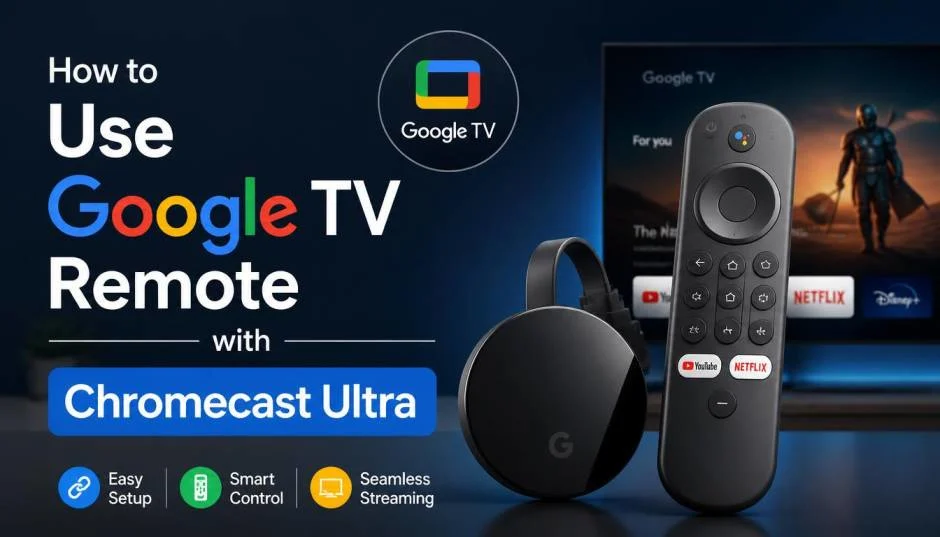
A lot of people get this wrong. They buy a Google TV remote thinking it works with Chromecast Ultra. It does not. I have seen this confusion pop up repeatedly in forums and support threads.
The remote that comes with Chromecast with Google TV pairs via Bluetooth. Chromecast Ultra has no Bluetooth hardware. You cannot pair them.
This guide clears up the confusion. It tells you exactly what works, what does not, and how to control your device without wasting money on incompatible accessories.
So, How to Use Google TV Remote with Chromecast Ultra?
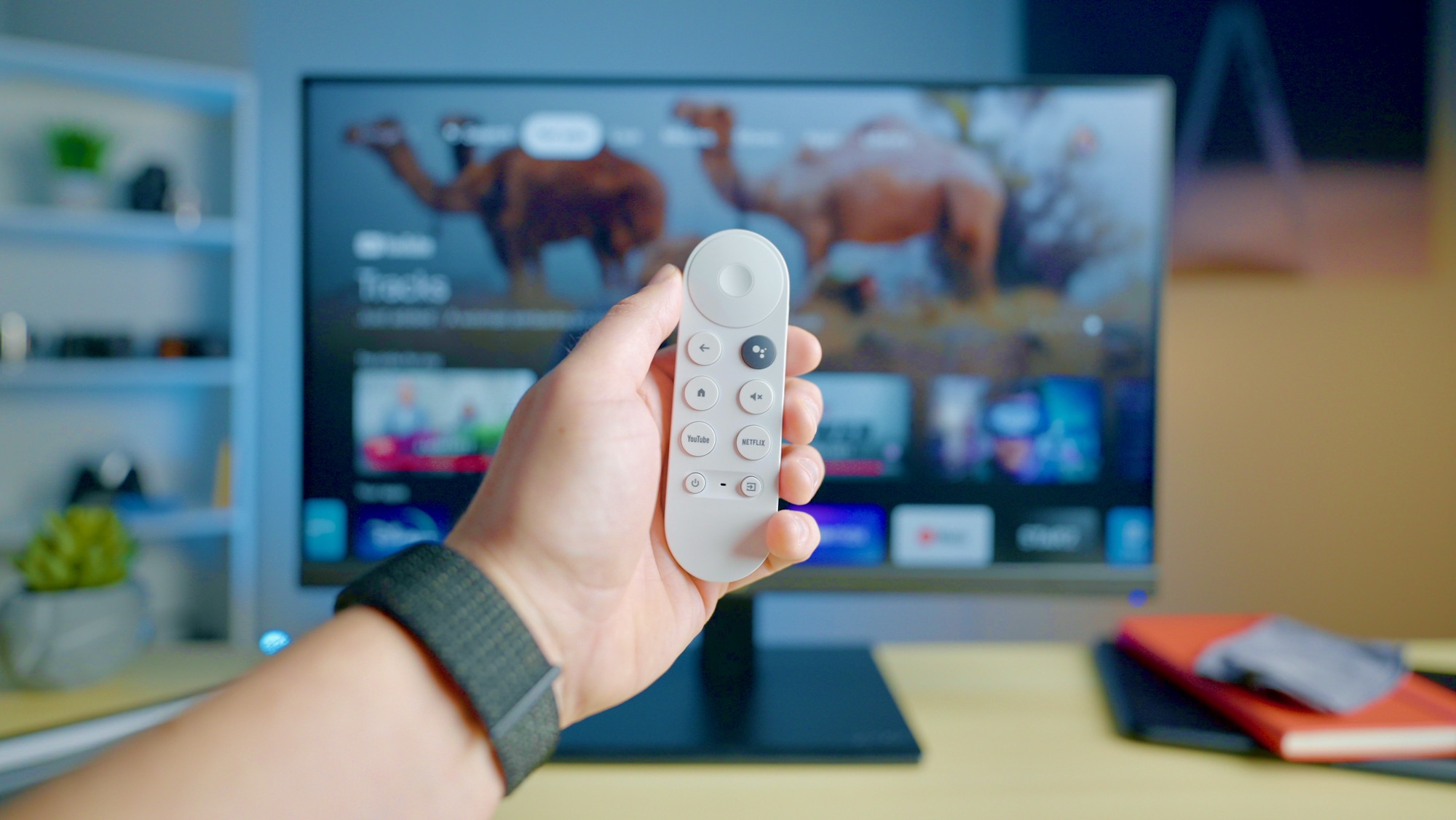
Chromecast Ultra launched in 2016. It came with no physical remote. Google designed it to be controlled entirely through your phone. That worked fine for years.
Read Also: The Best Chromecast Ultra Flashing Orange: Easy Fixes That Work (2026)
Then Google released Chromecast with Google TV in 2020. That device came with a physical remote. People saw the remote and assumed it worked with all Chromecasts. It does not.
The remote uses Bluetooth Low Energy. Chromecast Ultra has no Bluetooth chip. It only has Wi-Fi. This is a hardware limitation. No software update can fix it.
One Google community member asked this exact question. The answer was blunt: "You can only use the remote with a Chromecast with Google TV, not the Chromecast ultra."
Chromecast Ultra vs. Chromecast with Google TV: Key Differences
| Feature | Chromecast Ultra | Chromecast with Google TV |
|---|---|---|
| Release year | 2016 | 2020 |
| Physical remote | No | Yes (included) |
| Bluetooth | No | Yes |
| Interface | Cast-only | Full Google TV interface |
| Voice control | Via phone only | Via remote + phone |
| Price | ~$69 (discontinued) | ~$30-$50 |
The older device relies on your phone for everything. The newer device works like a full streaming box.
How to Control Chromecast Ultra?
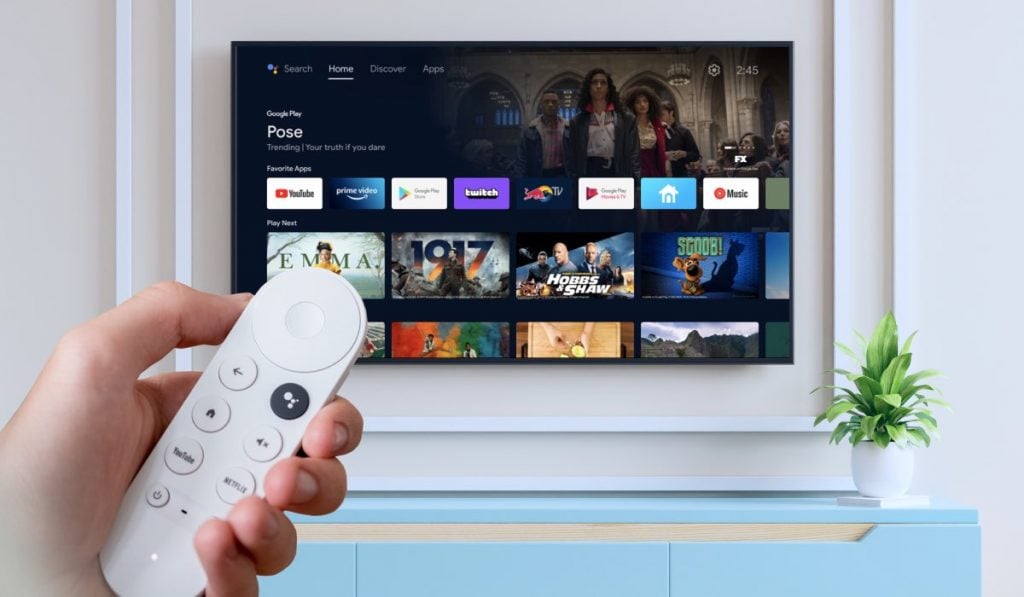
You have three ways to control Chromecast Ultra. None require a physical remote.
1: Phone Control
This is the primary way. Here is how.
Download the Google Home app on Android or iOS. Open the app. Tap your Chromecast Ultra device. You see a screen with controls. Volume slider. Play/Pause. Stop casting.
You can also cast directly from any app. Open YouTube, Netflix, or Spotify. Tap the Cast icon. Select your Chromecast Ultra. The content starts playing. Your phone becomes a remote.
2: TV Remote via CEC
HDMI-CEC is a feature on most modern TVs. It lets your TV remote control other devices connected via HDMI.
To set this up: Check your TV settings. Look for HDMI-CEC. It goes by different names. Panasonic calls it Viera Link. Samsung calls it Anynet+. Sony calls it Bravia Sync. LG calls it Simplink.
Turn it on. Then check your Chromecast settings. Go to your device in the Google Home app. Tap Settings. Look for HDMI CEC options. Enable it.
Once configured, your TV remote's play, pause, and navigation buttons should work with Chromecast Ultra.
3: Voice Commands
Google Assistant on your phone can control playback. Say "Play [movie name] on [device name]." Or "Pause living room TV." Works with Google Home speakers too.
You need to name your device in the Google Home app. Give it a clear name like "Bedroom TV" or "Living Room."
What the Google TV Remote Actually Works With?
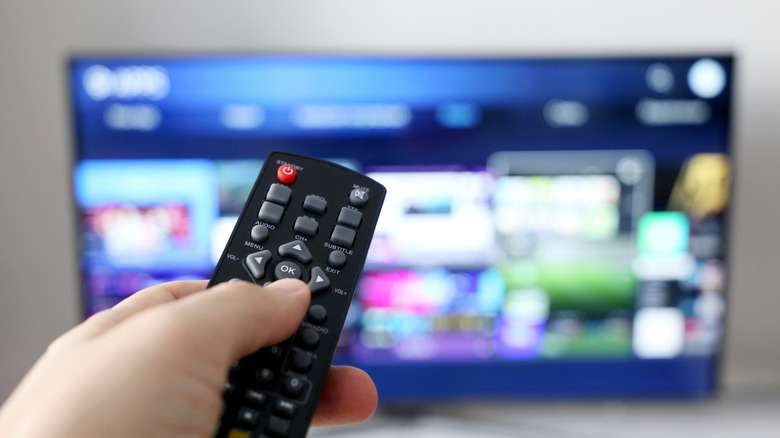
The remote works only with specific devices.
Compatible:
-
Chromecast with Google TV (4K)
-
Chromecast with Google TV (HD)
-
Google TV Streamer (2024 release)
Not compatible:
-
Chromecast Ultra
-
Chromecast (any generation)
-
Any non-Google TV device
One user on Reddit confirmed: "The Chromecast ultra doesn't support a Bluetooth remote. The only way to get it to work is to get a Chromecast with Google TV." Simple as that.
Google TV Remote Buttons Explained
If you have a Chromecast with Google TV, here is what the remote buttons do.
You Must Also Like: Is It Time to Upgrade to the Chromecast Ultra 2026?
D-Pad
The circular directional pad. Move up, down, left, right. Press the center to select. Long press center for more options.
Back Button
Bottom left. Returns to previous screen. Exits apps. Closes menus.
Assistant Button
Second from left, bottom row. Press and hold to talk. Ask to search, control devices, or play specific content.
Mute Button
Third from left. Silences audio completely.
YouTube Button
Fourth from left. Opens YouTube. Can be remapped to YouTube Music, Kids, or TV.
Power Button
Far left, bottom. Turns TV on or off. Also works with soundbars and receivers.
Home Button
Top right, circular. Returns to the main Google TV screen.
Volume Buttons
Long vertical button on right. Press top or bottom for volume.
Netflix Button
Below volume. Opens Netflix. Cannot be remapped.
Customizable Button
Bottom right. Only on newer remotes. Set it to launch any app or toggle inputs.
How to Set Up Chromecast with Google TV Remote?
If you own the compatible device, setup is simple.
Connect Chromecast to your TV's HDMI port. Plug in the power cable. Switch TV to that HDMI input. Insert batteries into the remote. Press any button. The remote pairs automatically.
If it does not pair: Press and hold Back and Home buttons together. Hold for about three seconds. The LED on the remote starts flashing. This puts it in pairing mode.
Follow on-screen prompts to complete setup.
Volume and power setup: After basic pairing, the TV asks if you want volume and power control. Select Set Up Remote. Choose which device controls sound. It plays a test sound. Adjust volume to confirm. Press Yes if it works.
Power button test follows. Press to turn TV off. Wait eight seconds. Press again to turn back on. Confirm if it works.
Fixing Remote Connection Issues
The remote sometimes stops working. Here is what to do.
Check batteries first. Low batteries cause pairing failures. Replace with fresh ones.
Reboot Chromecast. Unplug power for ten seconds. Plug back in. Let it restart completely. Try the remote again.
Re-pair the remote. Go to Settings on your TV screen. Navigate to Remotes & Accessories. Find the remote and select Unpair. Then add it again by selecting Add Accessory. Press Back + Home buttons to pair.
Factory reset Chromecast. Last resort. Settings > System > About > Factory Reset. This clears everything. You will need to set up again.
How to Get a New Remote?
If you lose your remote, you have options.
Buy a replacement. Google sells official remotes. Check the Google Store. Make sure you buy the right one for your model. The remote for Chromecast with Google TV 4K also works with the HD version.
Use the virtual remote. Download the Google TV app on your phone. Tap the remote icon at the bottom. Select your device. Controls appear on screen.
Upgrade to Google TV Streamer. Newer device comes with the new remote. Includes the customizable button and volume controls.
Common Mistakes to Avoid
Buying the wrong remote. Do not buy a Google TV remote for Chromecast Ultra. It will not work. Save your money.
Expecting phone casting to work like a remote. Phone casting sends content to the device. But you cannot use your phone as a full remote for browsing menus. Chromecast Ultra has no menus to browse.
Forgetting to name your device. When using voice commands, the device needs a clear name. Call it "TV" or "Living Room." Vague names confuse Google Assistant.
Skipping HDMI-CEC setup. If your TV supports CEC, turn it on. It makes basic control possible with your existing remote.
My Experience with Chromecast Ultra
I used Chromecast Ultra for years. I liked it. The quality was good for 4K streaming.
But I wanted a remote. My TV remote via CEC worked for basic playback. Pause, play, volume. But I could not browse. I could not search. I was stuck with my phone.
I upgraded to Chromecast with Google TV. The remote changed everything. Voice search works great. Browsing is easier. The interface shows recommendations. I do not miss the old setup.
If you are still using Chromecast Ultra, it is fine. It works. But if you want a remote experience, upgrade. Do not try to hack the remote to work. It will not happen.
What to Buy Instead?
If you have Chromecast Ultra:
-
Keep using your phone
-
Enable HDMI-CEC on your TV
-
Consider upgrading to Google TV Streamer
If you want a remote:
-
Buy Chromecast with Google TV (4K or HD)
-
Buy Google TV Streamer
-
These devices include the remote in the box
Do not buy:
-
A standalone Google TV remote for Chromecast Ultra
-
A third-party Bluetooth remote
The Final Thoughts
The Google TV remote works only with Chromecast with Google TV and Google TV Streamer. Chromecast Ultra has no Bluetooth hardware. No pairing will ever work. Use your phone, TV remote with CEC, or voice commands instead.
If you want the remote experience, upgrade to Chromecast with Google TV. It includes the remote and full Google TV interface. Do not waste money on a remote that cannot pair. The hardware limitation is permanent.