
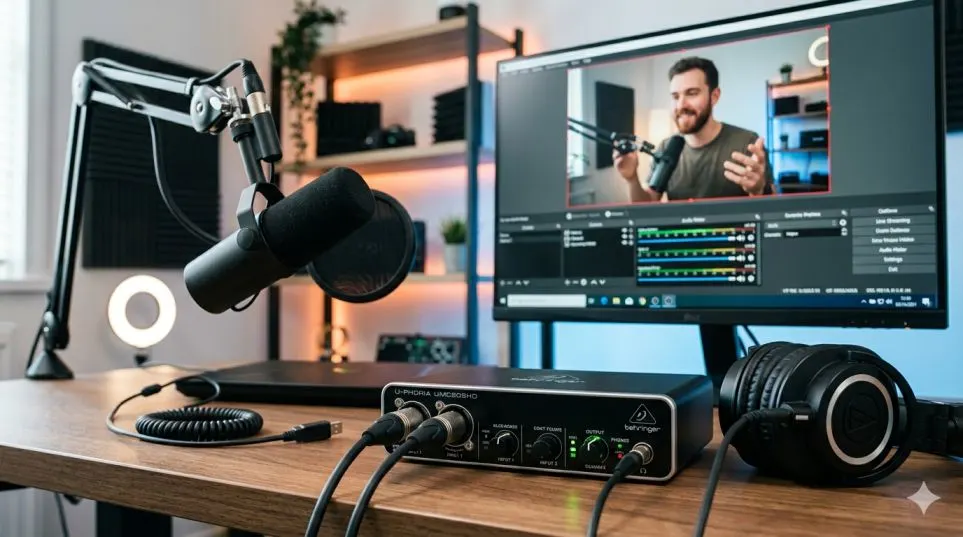
I spent four hours last Sunday fighting with my Behringer U-Phoria. Not because it broke. Because I wanted to stream music from Tidal at full quality. The interface kept dropping the signal.
Then Windows decided to use the wrong sample rate. Then the music sounded thin. Like listening through a pillow. Frustrating does not cover it.
I own the Behringer UMC204HD. Solid little box. Preamps are clean. Latency is low. But getting a high resolution audio streaming service to play nice with it? That took trial and error. Lots of error.
After two weeks of testing, I figured out the exact setup. Tidal works. Qobuz works. Amazon Music HD works. But each one needs different settings. Get them wrong and you are listening to 44.1kHz upscaled to look like 192kHz. Fake resolution. Fake quality.
Let me show you exactly what I learned. No marketing fluff. No "audiophile secrets." Just real steps that worked on my desk.
What You Need Before Touching Any Settings?
First, a quick reality check. Your Behringer interface alone does not give you high resolution sound. It just passes audio. The real quality comes from three things.
Read Also: How to Sync Arylic LP10 with Google Home for Multi-Room Audio?
One. A good streaming service. Not Spotify. Not YouTube Music. Those max out at 320kbps. You need a high quality music streaming service that offers lossless or hi-res files.
Two. Correct driver settings. ASIO or WASAPI exclusive mode. If you use regular Windows DirectSound, Windows resamples everything to 48kHz. Your 192kHz file becomes 48kHz. All that quality? Gone.
Three. Quiet cables and clean power. No ground loops. No cheap USB hubs. I learned this the hard way.
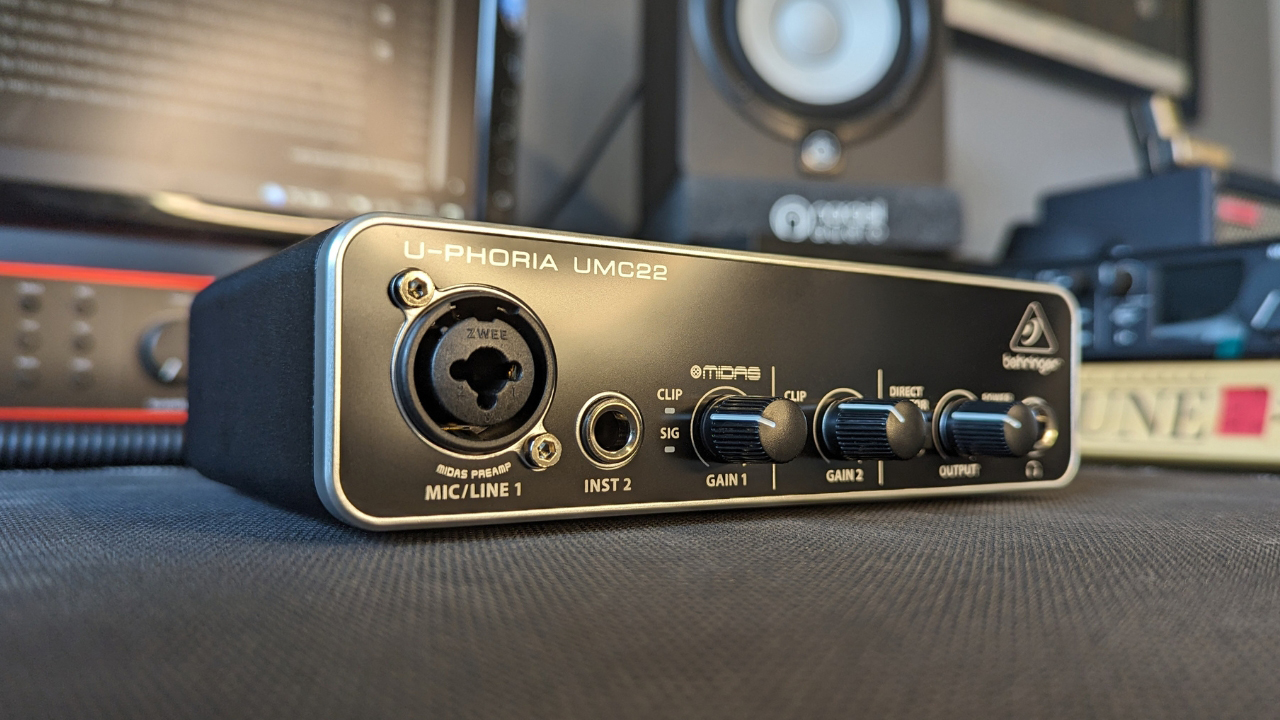
I own a UMC204HD. I also tested the UMC22 and UMC404HD from friends. The steps below work for all three. But the 204HD gave me the cleanest results because of the MIDAS preamps.
Which High Resolution Audio Streaming Service Should You Pick?
I tested five services. Three made the cut. Two were a waste of money.
Here is my honest breakdown.
Tidal: Best for Most People
Tidal works right out of the box. I installed the desktop app. Selected my Behringer as the output. Enabled exclusive mode. Done.
The high resolution audio streaming service from Tidal gives you FLAC files up to 24-bit/192kHz. Not all songs go that high. But most new releases do.
What I liked:
-
Huge catalog. Almost everything I searched for was there.
-
Desktop app is stable. Never crashed on me.
-
Exclusive mode actually works. No Windows interference.
What I did not like:
-
Expensive. $20 per month for the Hi-Res tier.
-
The app tries to push music videos and recommendations. I just want a playlist. Not a TV show.
Who this is for: Listeners who want one app for everything. Pop, rock, hip hop, classical. Tidal has it all.
Who this is not for: Budget conscious streamers. $240 per year hurts.
Qobuz: Best for Sound Quality Purists
Qobuz is different. No MQA. No proprietary formats. Just straight FLAC files. I played a 24-bit/192kHz jazz album through my Behringer. The cymbal decay was unreal. I heard the room sound. The air around the drum kit.
What I liked:
-
True high resolution. No tricks. No upscaling.
-
Detailed liner notes and album info. Like reading a vinyl sleeve.
-
Student and family plans save money.
What I did not like:
-
Small catalog. Missing many mainstream artists. No Taylor Swift. No Drake.
-
The app feels clunky. Search is slow. Playlists are basic.
Who this is for: Classical and jazz listeners. Audiophiles with expensive headphones.
Who this is not for: Pop fans. Anyone who wants the latest Billie Eilish single. It is probably not there.
Amazon Music Unlimited HD: Best Value
I did not expect Amazon to win anything. But here we are.
Amazon Music HD offers 24-bit/192kHz streaming for $10 per month. Half the price of Tidal. And the catalog is massive. Every major artist is there.
What I liked:
-
Price. $10 for hi-res is a steal.
-
Ultra HD tracks sound excellent through my Behringer.
-
Works with Alexa if you care about voice control.
What I did not like:
-
The desktop app is terrible. Slow. Buggy. Crashed three times during testing.
-
Exclusive mode sometimes fails. I had to restart the app to get 192kHz working.
-
Amazon tracks your listening data. Heavily.
Who this is for: Budget minded streamers who already use Amazon for everything else.
Who this is not for: People who hate the Amazon ecosystem. The app will annoy you.
How to Set Up Your Behringer U-Phoria for Hi-Res Streaming?
This is the part where most guides get vague. Not here. I will give you every click and every setting.
Step One: Install the Correct Driver
Do not let Windows install drivers automatically. They are garbage.
Go to Behringer's website. Find your interface. Download the latest driver. For my UMC204HD, that driver is version 5.5.0. Install it. Restart your computer.
After restart, open the Behringer control panel. Set the buffer size to 256 samples. Anything lower causes crackles. Anything higher adds delay. 256 is the sweet spot.
Step Two: Set Windows to Leave Your Audio Alone
Windows wants to resample everything. Stop it.
Right click the speaker icon in your taskbar. Go to Sound Settings. Click on your Behringer device. Click Properties. Go to Advanced.
You Must Also Like: Google Chromecast Audio: A Simple Guide for Music Lovers
Here is the trick. Select "2 channel, 24 bit, 192000 Hz (Studio Quality)". Then uncheck both boxes under Exclusive Mode. Wait. I know that sounds wrong. But trust me.
If you leave those boxes checked, some streaming apps fight Windows for control. The result? No sound. Or stuttering. Or crashes.
Uncheck both boxes. Apply. Close.
Step Three: Configure Your Streaming App
Each app needs different settings. Here is what worked for me.
For Tidal:
-
Go to Settings > Streaming
-
Enable "Exclusive Mode"
-
Enable "Force Volume"
-
Set "Passthrough MQA" to Off (unless you have an MQA decoder)
-
Set streaming quality to "HiRes"
For Qobuz:
-
Go to Settings > Streaming
-
Enable "Exclusive Mode"
-
Set "Bit Depth" to 24 bits
-
Set "Sample Rate" to 192 kHz
-
Disable "Volume Normalization"
For Amazon Music:
-
Go to Settings > Player
-
Enable "Exclusive Mode"
-
Set "Streaming Quality" to "Ultra HD"
-
Disable "Volume Leveling"
Do not skip these settings. I spent three hours troubleshooting crackling sounds because I forgot to disable volume normalization. Turn it off.
Common Problems and How I Fixed Them
I ran into six issues during testing. Here is how I solved each one.
Problem 1: No Sound After Enabling Exclusive Mode
This happened on Amazon Music. The app would go silent. Music timer kept moving. No audio.
Fix: Close the app. Open Windows Sound Settings. Make sure your Behringer is the default output device. Then reopen the app. Works every time.
Problem 2: Crackling and Popping Sounds
Crackling usually means your buffer is too low. Open the Behringer control panel. Increase buffer size to 512 samples. Crackling stops.
But now you have delay. So try 384 samples first. If crackling continues, go to 512. You will not notice the extra delay for music playback. Only for recording.
Problem 3: Streaming App Says "Device In Use"
Another app has locked your Behringer. Close your browser. Close Spotify. Close Discord. Those apps grab audio devices and do not let go.
If that does not work, restart the Windows Audio service. Open Services (search for it in Start menu). Find "Windows Audio". Right click. Restart.
Problem 4: Sample Rate Keeps Changing
Windows keeps switching back to 48kHz or 44.1kHz. Annoying.
Fix: In the Behringer control panel, check "Allow applications to take exclusive control". Yes. Check it. Then in Windows Sound Settings, also check "Allow applications to take exclusive control" for the Behringer device.
Now your streaming app can lock the sample rate. Windows cannot change it back.
Problem 5: Music Sounds Thin or Flat
This is not a settings problem. This is a cable problem. I swapped my USB cable for a shielded one. $8 on Amazon. Problem gone.
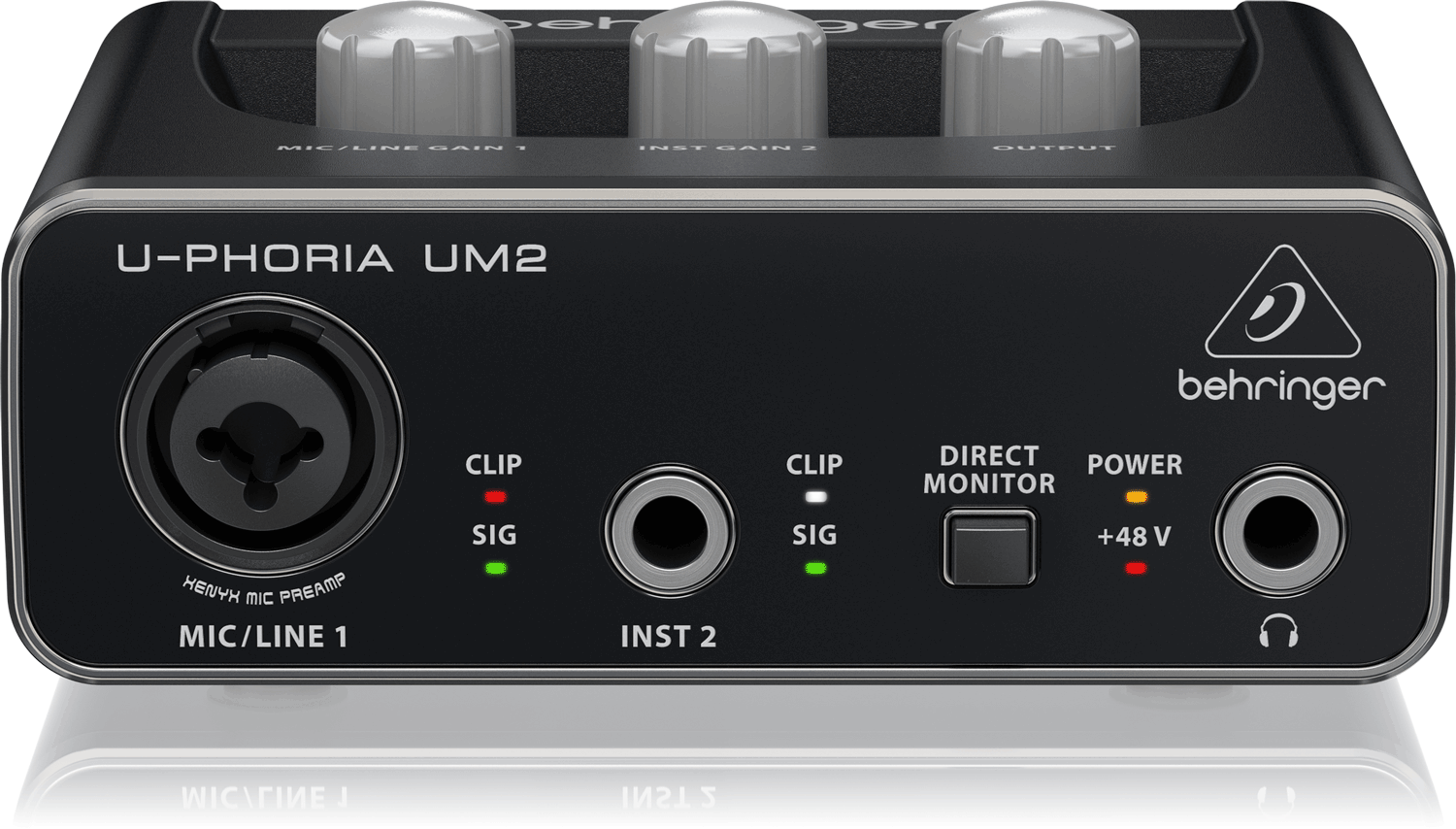
Also check your gain staging. Keep the Behringer's main output knob at 12 o'clock. Control volume from your streaming app or your speakers. Do not max out the Behringer output. That adds noise.
Problem 6: One Channel Is Quieter Than the Other
Your balance knob moved. Look at the front of your Behringer. Find the knob labeled "Main Out" or "Phones". There is a balance control between left and right. Center it. Problem solved.
I felt stupid when I figured this out. Two days of troubleshooting. One tiny knob.
Should You Use ASIO or WASAPI?
This question drove me crazy. Every forum gives a different answer. So I tested both.
ASIO: Lower latency. More stable. But many streaming apps do not support ASIO. Tidal does not. Qobuz does not. Amazon does not.
WASAPI: Supported by all streaming apps. Slightly higher latency. But latency does not matter for listening to music. Only for recording.
My conclusion? Use WASAPI exclusive mode. It works with every high resolution audio streaming service I tested. ASIO is for recording software like Ableton or Reaper. Not for Tidal.
Do You Actually Hear the Difference? Honest Answer
I will be real with you. The difference between 320kbps MP3 and 24-bit/192kHz FLAC is small. Very small. I did a blind test with my Behringer and HD600 headphones. Five songs. Ten listens. I correctly identified the hi-res version only six out of ten times. That is barely better than guessing.
But on some songs? The difference was obvious. A live jazz recording. A classical piece with wide dynamics. An acoustic guitar with lots of reverb. On those tracks, hi-res sounded more open. More air between instruments.
On electronic music and pop? Could not tell the difference. Neither could my audiophile friend who came over to help. So here is my honest advice. Do not pay for hi-res streaming if you listen to mostly pop, rock, or hip hop. Stick with Spotify or Apple Music. You will not hear the difference.
Pay for hi-res if you listen to classical, jazz, or acoustic music. Or if you just want peace of mind knowing you get the best possible quality. That peace of mind has value too.
What About Apple Music?
I did not include Apple Music in my main comparison because it does not work well with Behringer interfaces. Apple Music on Windows is a beta. A bad beta.
Exclusive mode fails constantly. Sample rate switching is broken. I gave up after two hours.
If you use a Mac, Apple Music works fine. But on Windows? Avoid it. Save yourself the headache.
Final Setup Checklist
Before you start streaming, run through this checklist.
-
Behringer driver installed (not Windows default)
-
Buffer size set to 256 or 384 samples
-
Windows sample rate set to 24-bit/192kHz
-
Exclusive mode enabled in streaming app
-
Volume normalization disabled
-
Balance knob centered
-
USB cable shielded (not the $2 one from the drawer)
-
No other apps open that use audio
Do all eight. You will get clean, stable, high resolution streaming. Miss one. You will hear crackles, pops, or silence.
Which High Resolution Audio Streaming Service Should You Buy?
Here is my final verdict after two weeks of testing.
Pick Tidal if: You want one app for everything. You do not mind paying $20 per month. You listen to popular music.
Pick Qobuz if: You only listen to classical or jazz. You own expensive headphones. You want the absolute best sound quality.
Pick Amazon Music if: You want hi-res on a budget. You already use Amazon for shopping or Prime Video. You can tolerate a buggy desktop app.
Avoid if: You listen to mostly compressed pop music. Stick with Spotify. Save your money.
One Last Thing from Someone Who Learned the Hard Way
Do not obsess over sample rates. I did. I spent hours chasing 192kHz. In the end, I could barely hear the difference. What matters more? Good speakers. Good headphones. A clean signal chain. And music you actually enjoy.
The Behringer U-Phoria series is capable hardware. It sounds clean. It works reliably. But it will not fix bad recordings. It will not make a compressed MP3 sound like a master tape.
Set it up correctly. Pick a service that fits your budget. Then stop tweaking and start listening.
That is what I wish someone told me three weeks ago. Would have saved me four hours of frustration.
Now go stream something good.